
Our free printable planner has been updated through 2025!
The Add Salt & Serve Printable Planner is a comprehensive organizer for appointments and family meal planning. It is completely free for personal use, and includes weekly "to do" and menu planner pages as well as monthly and yearly calendar pages.
Each month has a Month View Calendar page which can be used with detailed Weekly Planner pages. Opposite each Weekly Planner page is a menu planner for the week. The planner pages are pictured below (click on the image to download the PDF file). The pages are all designed to fit in a standard 8 ½ x 11 three ring binder; they can also be spiral bound at your local copy shop.
If you have any trouble downloading the planner, please use the Troubleshooting Guide at the bottom of the page.

Download the Add Salt & Serve Planner Now »
You might also like our free daily routines and reminders.
Don't want to plan your own meals? Add Salt & Serve's free meal plans are full 5-night menu plans with recipes and grocery list already planned out for you.
Weekly & Menu Planner Pages
Menu Planner |
Weekly Planner |
The printable planner pages include a Weekly Planner on the right side and the Menu Planner on the left. The planner pages are designed to be printed double-sided which will result in the Weekly Planner being hole-punched on the left side of the page and the Menu Planner punched on the right side.
When your Planner is open on your desk, the Weekly Planner page will be on the right, with the Menu Planner and Grocery List on the left just as pictured above. The pages are all designed to fit in a standard 8 ½" x 11" three ring binder, and if you print the pages double-sided, your clip-off grocery list will be on the back of last week's To Do list. Another option is to take the pages to a copy center and have them spiral bound.
As you finish each week, copy any incomplete items from this week's To Do list onto the list for next week and clip your grocery list for next week off so you can start your week with all of the items you need for your menu plan.
Monthly & Yearly Calendars (updated through 2024)
Month View Calendar |
Yearly Calendar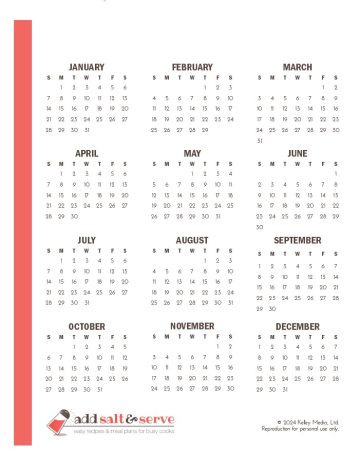 |
Download the Add Salt & Serve Planner Now »
Please note: You may wish to make a folder named Planner in your document folder so you can easily find the planner files and print fresh copies when you need them.
Troubleshooting Guide
You must unzip the file before trying to open it with Acrobat Reader. On most computers, simply double-clicking the file will create an unzipped folder with the file contents. Once unzipped, the files can be opened with Acrobat Reader.
If the files do not open for you after you have unzipped them, please note their location in Finder (Mac) or Explorer (Windows). Next, open the Acrobat Reader, and using the Open... command from the File menu, choose the unzipped .pdf file from the location you noted. If you still cannot open the file, it may have been corrupted in transit. In that case, you should try downloading it again.


Leave a Reply